Android 4.1.2 JellyBean API 16 supports Java 6 (Java 1.6 is Java 6). JRE is Java Runtime Environment and JDK is Java Development Kit. Android Studio 4.0.1 uses IntelliJ JetBrains Java 8 (Java 1.8 means Java 8) JRE. They are different by many ways: structure, available classes. Android Studio uses compile-time Java and pushes app (module) to virtual device or real device. On virtual or real device has runtime Java. Java that was actually shipped with smartphone. This is reason why you pass app compile, but get runtime errors in Android Studio.
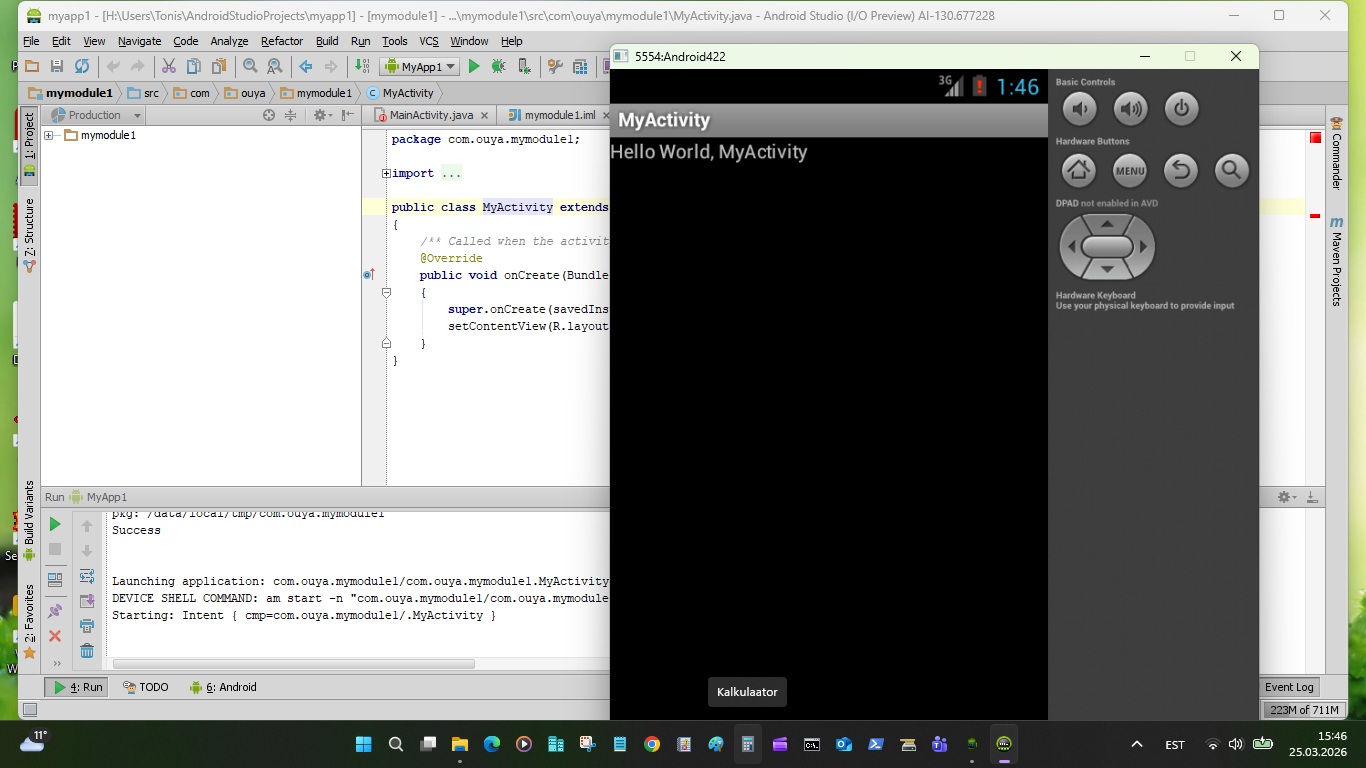
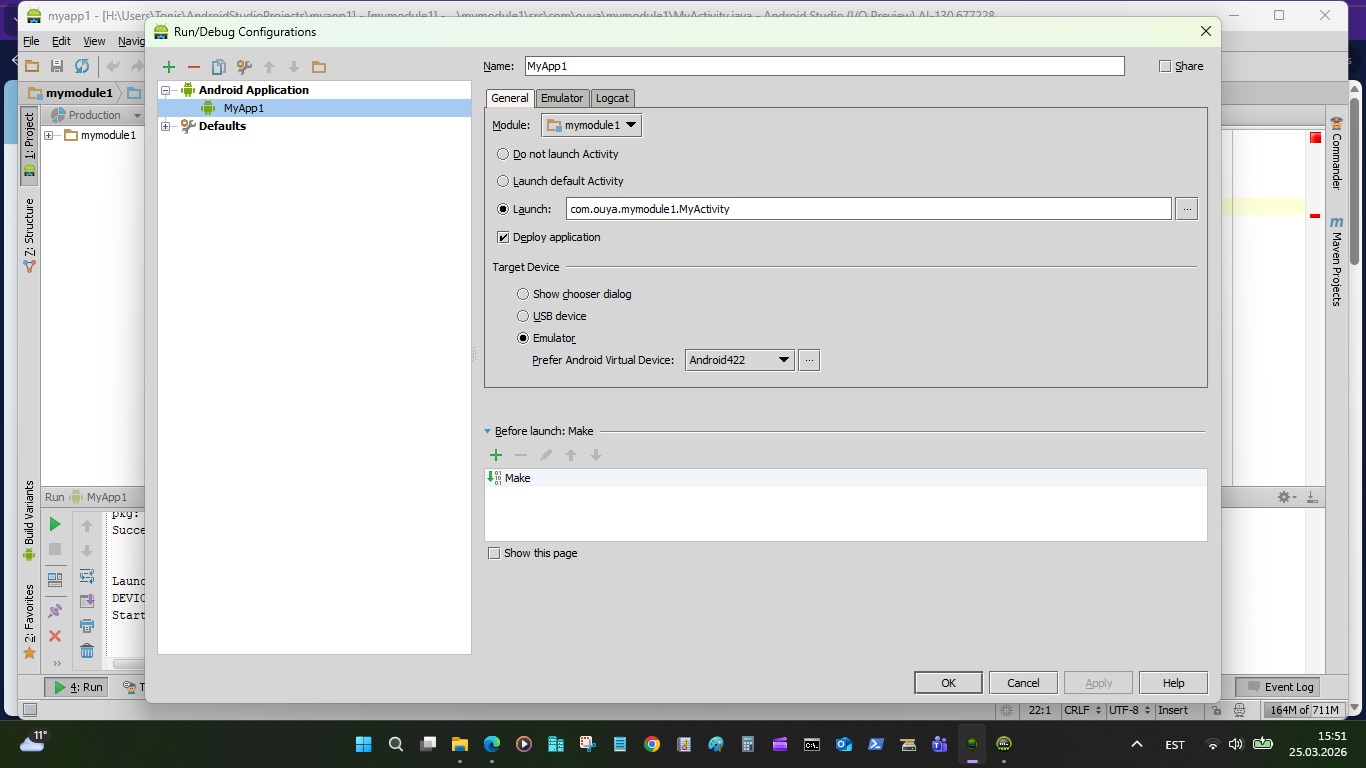
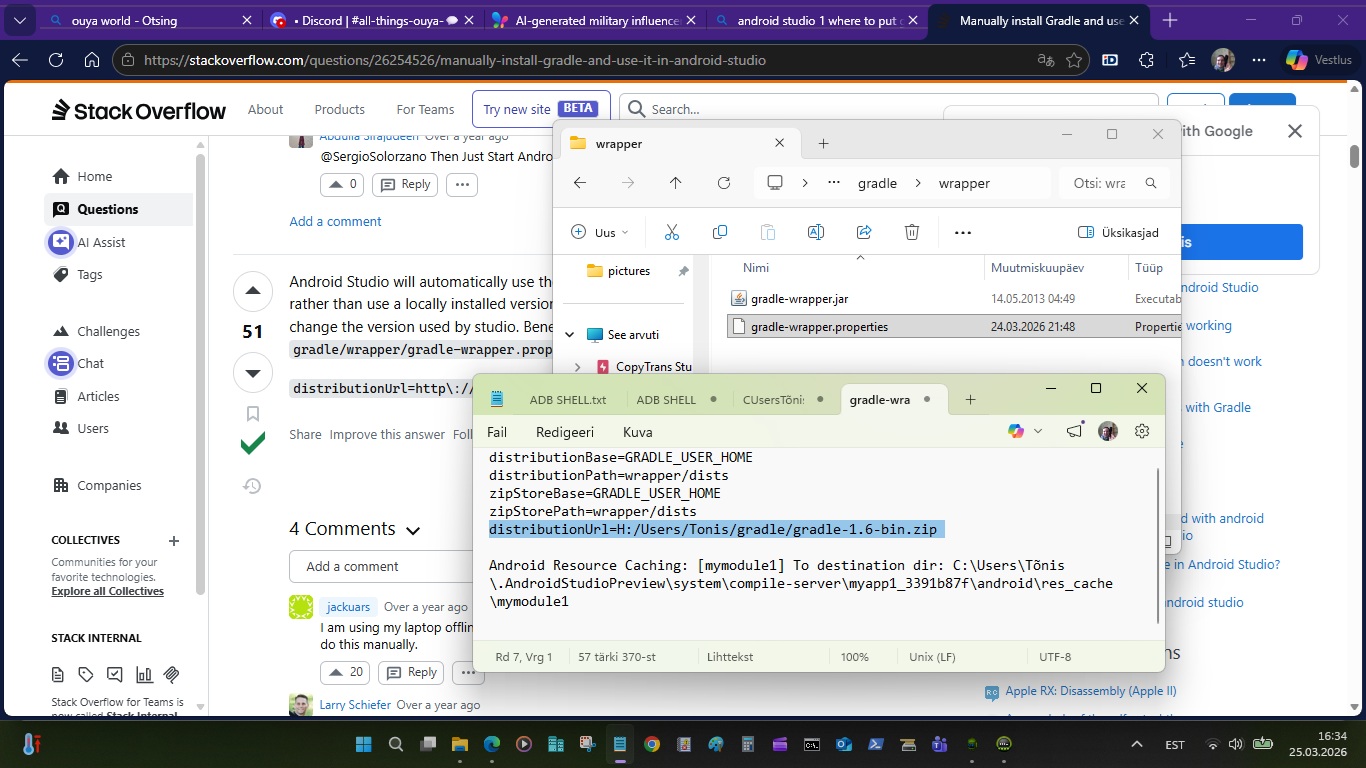
Get reckt! Android studio 1 (364mb download), in C/users/Username/.android/ debug.keystore changed to emulator-debug.keystore. Android Studio 1 created correct format debug.keystore file. Picked module activity and not default activity. All worked and Ouya compatible test app was created, signed, uploaded to emulator. Yey! This means I can push this apk to real Ouya. In your real filesystem go to filepath in your Android Studio Projects (not in Android Studio program) gradle/wrapper/gradle-wrapper.properties. Change this entry: distributionUrl where is gradle URL changed to local filepath distributionUrl=H:/Users/yourusername/gradle/gradle-1.6-bin.zip
where I downloaded gradle1.6.-all.zip.
Android Studio 1 used Java JDK 1.8 (java 8) by Sun Microsystems/ Oracle and Android SDK used JDK Java 1.6 (Java 6) update 45 by Sun Microsystems/ Oracle.
Here is list from StackOverflow:
answered Jul 5, 2023 at 15:27
[bmdelacruz](https://stackoverflow.com/users/6396174/bmdelacruz
This is just a guess but I think we can tell which Java version an Android OS version has based on the branches of the /platform/prebuilts/jdk/jdk*Git repositories which can be seen at https://android.googlesource.com/:
/platform/prebuilts/jdk/jdk8git repository has branches for: oreo (8), pie (9), 10, 11, 12, 13, 14/platform/prebuilts/jdk/jdk9git repository has branches for: pie (9), 10, 11, 12, 13, 14/platform/prebuilts/jdk/jdk11git repository has branches for: 11, 12, 13, 14/platform/prebuilts/jdk/jdk17git repository has branches for: 13, 14/platform/prebuilts/jdk/jdk21git repository exists but it has no branches yet for any Android OS version
With the information above, I think we can assume that…
- Android 13 and 14 has access to Java 8, 9, 11, and 17
- Android 11 and 12 has access to Java 8, 9, and 11
- Android Pie (9) and 10 has access to Java 8 and 9
- Android Oreo (8) has access to Java 8
I didn’t see any branches regarding any version older than Oreo so I don’t know what and where to look, but I think @claypooj’s answer covered that:
- Android Nougat (7) has access to Java 8
- Android Lollipop (5) and Marshmallow (6) has access to Java 7
- Android Gingerbread (2.3), Honeycomb (3), Ice Cream Sandwich (4), Jelly Bean (4.1), and KitKat (4.4) has access to Java 6
- **Android Cupcake (1.5), Donut (1.6), Eclair (2), and Froyo (2.2)**has access to Java 5
App building/ compilation:
IntelliJ .idea
Android Gradle
Project structure settings
To change various settings for your Android Studio project, open the Project Structuredialog by clicking File > Project Structure. It contains the following sections:
- Project: Sets the version for Gradle and the Android Gradle plugin and the repository location name.
Gradle.org Gradle
Build Environment Configuration
The gradle.properties file
Gradle properties, system properties, and project properties can be found in the gradle.properties file:
org.gradle.java.home=(path to JDK home)
Specifies the Java home for the Gradle build process. The value can be set to either a jdk or jre location; however, using a JDK is safer depending on what your build does. This does not affect the version of Java used to launch the Gradle client VM.
You can also control the JVM used to run Gradle itself using the Daemon JVM criteria.
Default is derived from your environment (JAVA_HOME or the path to java) if the setting is unspecified.
Key here which Java is used, mostly Android Studio overshoots and uses Java 8 to compile for API 16 Android Java 6. Even worse is that if you set minSDK to API 16 generated boiler plate code is generated for API 21. You can run templates aka boiler plate code fine with minSDK API 21. When you manually change boiler plate minSDK from API 21 to API 16 you start to get a-lot of errors because Android Studio checks mostly libraries manifest minSDK to your set value.
Sadly it does not work other way around like when you set minSDK all code will be checked to not exceed minSDK. For now much code and libraries stay near API 21.
To get pure API 16 code safe bet is to use Ouya release year 2013 Android Studio and SDK manager with API 21 to cover that period micro consoles like Mojo MadKatz that runs Android 5 Lollipop. Very important is which Java Android Studio ships with, because Ouya Java is fixed in time for Java 6. Everything newer can generate code in Android Studio that does not run on virtual device API 16 or real Ouya Console.
June 25, 2013 Ouya released
Example:
There have been given a lot of good explanations of what sourceCompatibility vs targetCompatibility is good for and a further good article can be found here Gradle: sourceCompatiblity vs targetCompatibility. But instead of sourceCompatibility vs targetCompatibility I would suggest to use the Gradle toolchain(see Toolchains for JVM projects) which makes release or sourceCompatibility tweaks obsolete and gurantees that langauge-features (sourceCompatibility), bytecode (targetCompatibility) and Java-API/-Libraries (release) will match the Java Version. (Only drawback is that the IDE support is not yet fully established but is on its way).
Follow
answered Nov 19, 2022 at 15:38